Home page
The home screen of the Focus portal.
Quick Tour
Once you log in to Focus, you'll land on the home page. The main menu on the left provides access to key areas, including the Communications search screen, People screens, and Administration sections. Each menu item has been thoughtfully designed for ease of use, allowing you to locate and explore the communications data you need quickly and efficiently.
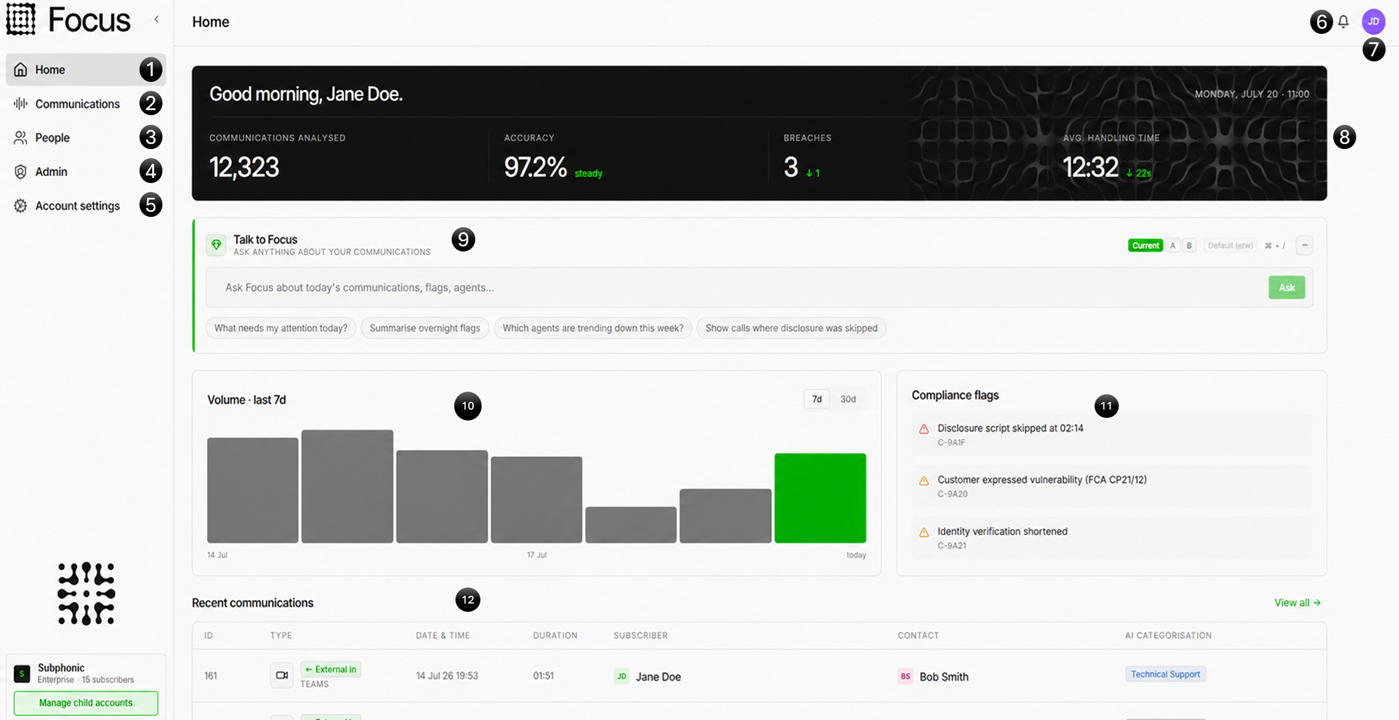
- We are currently on the Home page, which is indicated by the highlighted section
- Communications search - This is the hub of Focus and provides access to our powerful search interface. More information about this screen is available in the Communications section
- People - Manage people and user information. More information about this screen is available in the People section
- Admin - The administration section of the portal. This gives you access to retention, legal holds, reporting, and more
- Account settings - Access your account settings and Focus preferences
- Alerts - Displays new alerts, notifications, and other important information
- Profile - Quick Settings, log out, and profile options are available from this menu. More information is available in the Profile section below
- My stats - An at-a-glance tile showing the total number of communications you've made over the last seven days. (Permissions and user linking dependent.)
- Talk to Focus - Your built-in AI understands not only your data but also your processes, people and communications. Focus AI will be able to answer your questions and create dynamic UIs from the simplest of questions
- Your communications - A dynamic graph that grows as you use Focus, highlighting useful information. By default, it displays your communications from the last 7 or 30 days. (Permissions and user linking dependent.)
- Analysis actions - If enabled, anything that Focus wants to draw your attention to from Analysis Studio will show under this section.
- Latest communications - Provides easy access to your most recent communications
Menu options
On screens containing large amounts of data (such as the Communications screen), you can collapse the menu to provide more workspace by selecting the button next to the Focus logo in the top-left corner.

The menu has two states:
- Pinned menu - This is the default state and shows the full names of the menu items on the left.
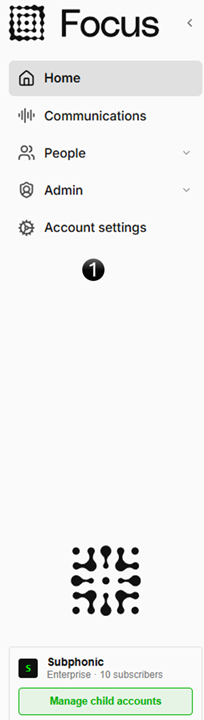
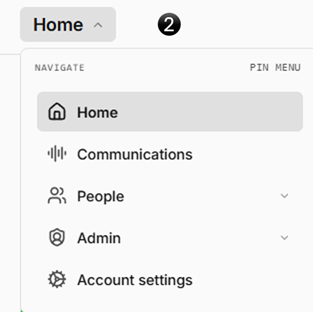
- Unpinned menu - This state saves space on the main interface, the menu can still be accessed by clicking the Home button. YYou can also re-pin the menu at any time if you prefer.
Profile and Quick Settings
The profile section is located in the top-right corner of the platform. Select the profile icon to open the Quick Settings menu and access your profile options.

- Clicking anywhere within the profile summary opens the Quick Settings menu.
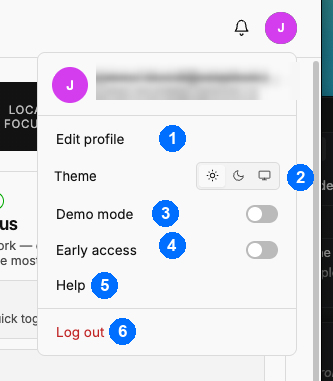
- Edit profile - Opens your profile, where you can change your display, language and time zone settings
- Theme - Quickly switch between light, dark and system themes. Your preference is saved automatically
- Demo Mode - Enables Demo Mode, which populates the home page with demonstration data
- Early Access - Enables Early Access features when available
- Help - Quick access to the help documentation (this page) from any screen
- Log out - Selecting this option will immediately log you out of the portal
If your account has imported archive data, a Data Source option also appears here. It lets you choose which data your searches use. For example, selecting Archive lets you search legacy data imported from a previous recording platform.
Edit profile
Selecting Edit profile opens your profile, where you can update your details and how Focus looks and behaves for you.
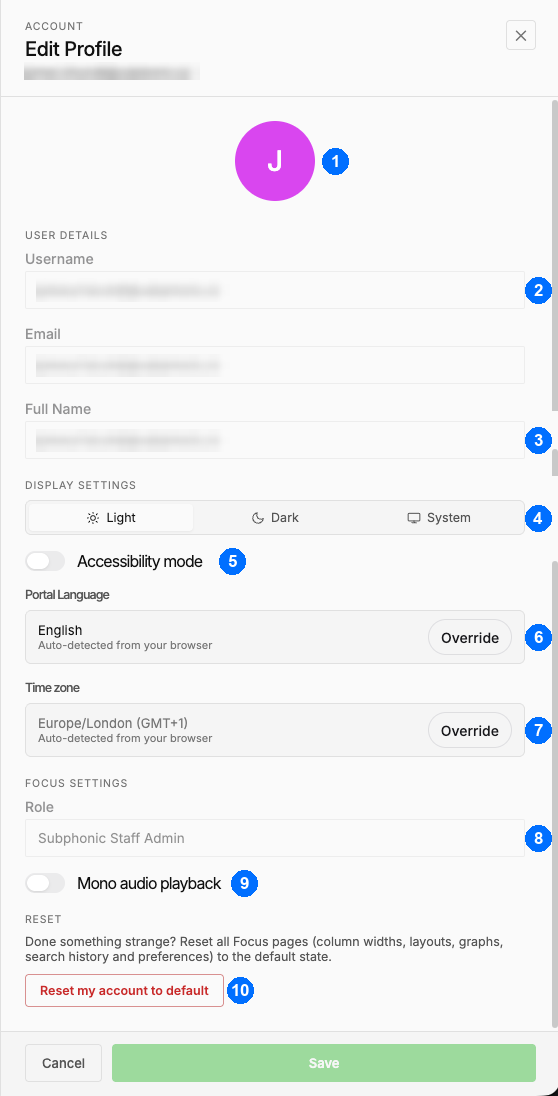
- Your avatar - Automatically generated from your name, it helps you quickly identify your own communications and comments
- Username and Email - In Focus, your email address is your username. You can only edit these if SSO is not enabled for your account
- Full Name - The name used for you throughout Focus
- Display settings - Choose Light, Dark or System. See Themes
- Accessibility mode - Enables an accessibility mode designed to achieve a 100% Lighthouse accessibility score
- Portal Language - The language Focus is shown in. See Language
- Time zone - The time zone Focus shows dates and times in. See Time zone
- Role - The role assigned to your account, which determines what you can see and do within Focus
- Mono audio playback - Plays audio back in mono in the portal player, mixing both sides of a stereo recording into a single channel. This is a player preference only - it does not change the format of recordings you download from the portal, or of recordings retrieved through the API
- Reset - Done something strange? Reset my account to default resets all Focus pages, including column widths, layouts, graphs, search history and preferences, to their default state
If your account has imported archive data, your profile also includes a Data Source setting, matching the option in Quick Settings.
When you're done, select Save.
Language
Focus is currently available in five languages, and new languages can be added on request:
- English
- French
- German
- Spanish
- Portuguese
By default, Focus uses your browser's language, shown as Auto-detected from your browser. Regional variants are matched to the closest language, so a browser set to Canadian French, for example, shows Focus in French. If your browser uses a language Focus doesn't offer yet, Focus is shown in English.
To choose a different language, select Override next to Portal Language and pick one from the list, then select Save.
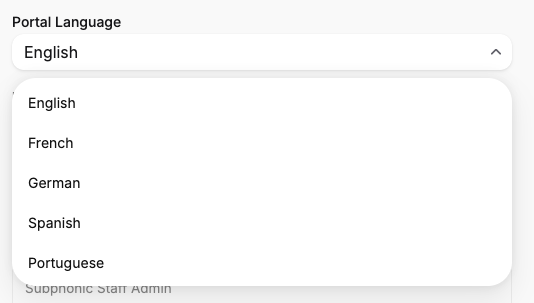
To go back to your browser's language, select Use browser.
Time zone
Focus stores every date and time in UTC, and shows them to you in your Focus time zone. That applies throughout the portal, including the communications grid and the Home dashboard, where each day's figures follow your time zone.
By default, your Focus time zone is your browser's time zone, shown as Auto-detected from your browser. This is the right choice for most people.
To use a different time zone, select Override next to Time zone and pick one from the list, then select Save. Each time zone is shown with its current offset from GMT, for example Europe/London (GMT+1).
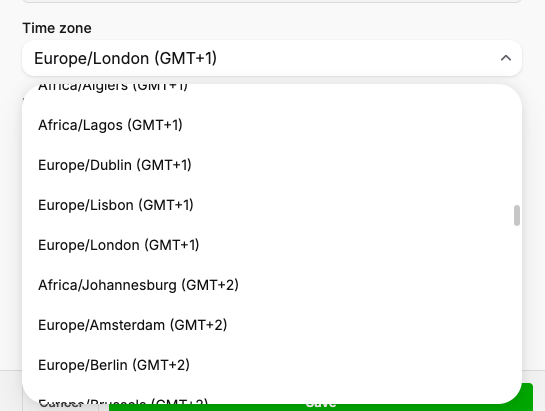
This is useful if, for example, you work for a team in another country, or you're travelling but want to keep seeing times in your home office's time zone.
When your Focus time zone differs from your browser's, Focus makes it clear:
- Your profile shows a notice that your browser is set to one time zone but your Focus time zone is another.
- The Home page banner shows both times, Local for your browser and Focus for your chosen time zone, so you can compare at a glance.

To go back to your browser's time zone, select Use browser.
Your language and time zone choices are saved in the browser you're using. If you use Focus on another computer or browser, set them there too.
Themes
To enhance your experience, Focus offers light and dark modes, allowing you to choose the visual theme that best suits your preferences and working environment. Whether you're working late at night or in a brightly lit office, you can select the theme that provides the most comfortable viewing experience.
Combined with intuitive navigation and personalised settings, Focus makes it easy to become familiar with its features and efficiently manage communications across multiple channels.
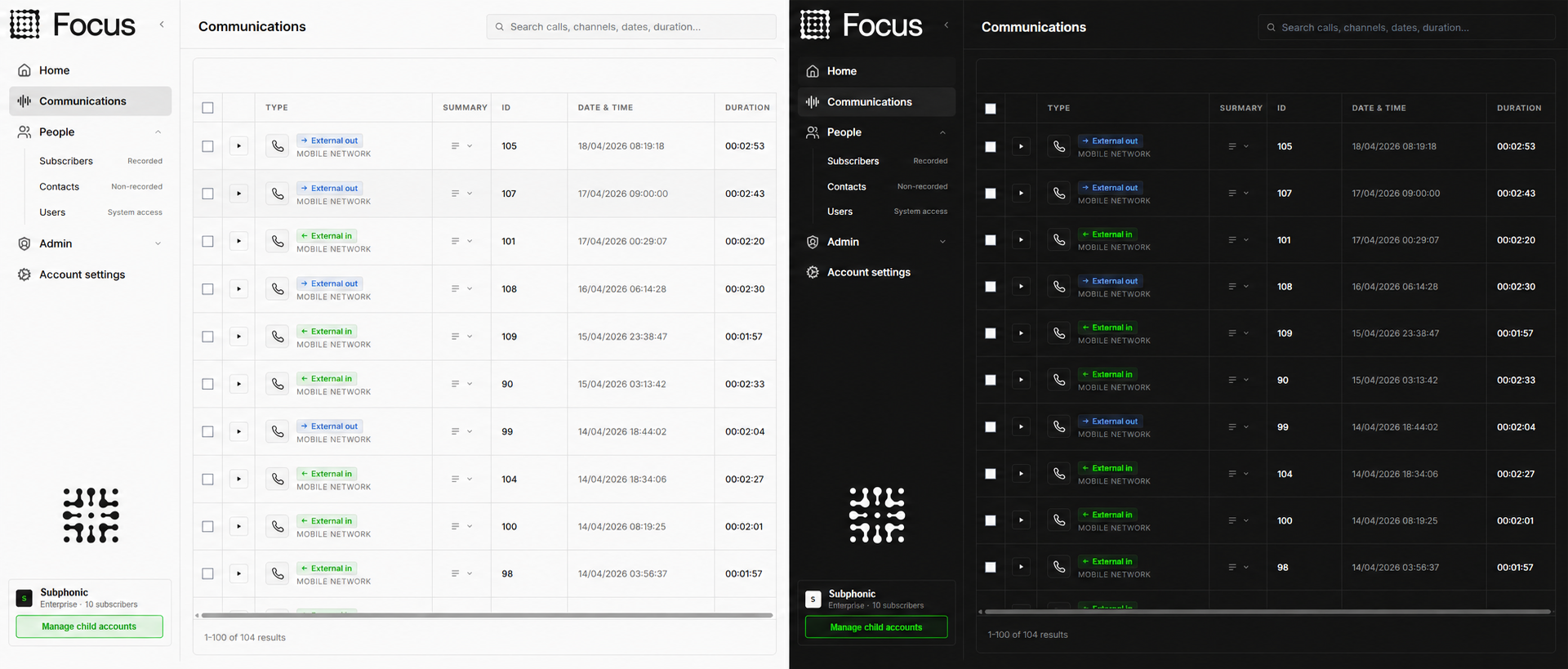
Choose System to follow your device's light or dark setting automatically, or pick Light or Dark to keep Focus the same whatever your device is set to.
Timeout
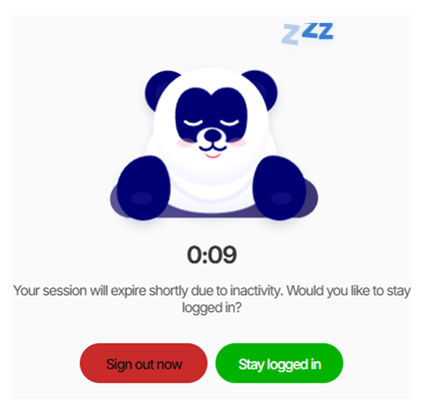
For security purposes, Focus automatically logs you out after a period of inactivity. If you're reviewing a lengthy transcript or analysing data without interacting with the portal, a notification appears two minutes before your session expires, giving you the opportunity to remain signed in.